Most people learn the value of a backup at the worst possible moment: a drive dies, a laptop gets stolen, or one careless click encrypts every file on the machine. The reassuring part is that protecting your data takes no expensive enterprise gear and no deep technical skill. It takes a plan. And the most durable plan anyone has come up with is the 3-2-1 rule. Here’s what it means and exactly how to put it in place, whatever you own.
What the 3-2-1 Rule Actually Means
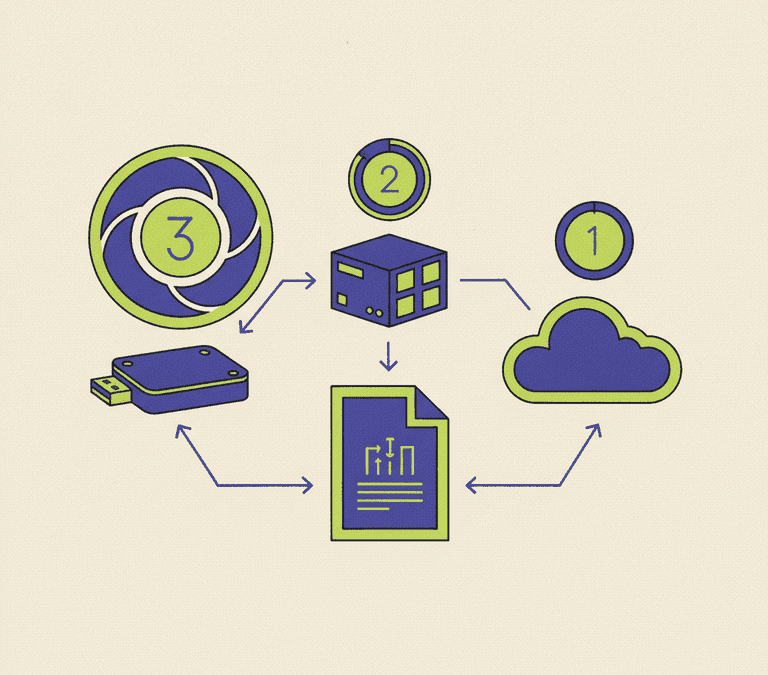
It’s a simple count, and each number defends against a different kind of disaster:
- 3 copies of your data. The original you work with every day, plus two backups. One backup is better than none, but a single point of failure between you and total loss is a thin margin.
- 2 different types of storage media. Say, your computer’s internal drive plus an external drive, or an external drive plus the cloud. Two copies on identical hardware bought the same week can fail the same way, at roughly the same time.
- 1 copy kept off-site. A backup sitting next to your computer won’t survive a fire, a flood, a burst pipe, or a burglary. The off-site copy, in the cloud or on a drive across town, is what saves you from a whole-room loss.
Quick gut check: picture any single event you can think of, a dropped laptop, a power surge, a stolen bag. If one of them could wipe out everything at once, you haven’t satisfied the rule yet.
Step 1: Decide What You Actually Need to Protect
You rarely need to back up everything. Operating systems and apps reinstall; your irreplaceable data doesn’t. Make a short inventory before anything else.
- List the folders holding work you could never recreate: photos and videos, documents, financial records, creative projects, and email if you store it locally.
- Note where each one actually lives. People are routinely surprised to find important files scattered across a desktop, a downloads folder, and a phone.
- Estimate the total size. That tells you how large an external drive, or how much cloud storage, you’ll need, with room to grow.
Pulling your important files into a clear folder structure now makes every step after this faster.
Step 2: Make Your First Local Backup (Copy 2)
Your second copy should be a local one you control. It restores fast and needs no internet. An external drive is the usual pick.
- Buy an external drive with comfortably more capacity than your data, so it has headroom for years of growth.
- Use your operating system’s built-in backup tool instead of dragging files by hand. Built-in tools keep version history and run on a schedule; manual copying does neither. Every modern desktop system ships with a backup feature for exactly this.
- Run the first backup all the way through, then confirm it reports success and that the drive really shows your files.
If you’d rather not track which folders are in or out, a full-disk or image backup grabs everything in one pass. Either way, the goal is identical: a complete, recent copy on separate hardware.
Step 3: Add an Off-Site Copy (Copy 3)
This is the copy most people skip. It’s also the one that most often saves the day. You’ve got two solid options, and using both is better still.
Option A: Cloud backup
A dedicated cloud backup service uploads your files to remote servers continuously. Once it’s set up, it runs quietly in the background, so your off-site copy stays current without you lifting a finger. Pick a reputable provider, turn on strong authentication for the account, and let that first upload finish. For a large photo library, that can take days.
Option B: A rotated external drive
Don’t want to use the cloud? Keep a second external drive somewhere else: a desk at work, a relative’s house. Swap it with the drive at home from time to time and refresh it. The copy you carry away is your off-site protection.
Why Sync Is Not the Same as Backup
This one trips up a lot of people. A file-sync service that mirrors a folder across your devices is convenient, but on its own it is not a backup. The clue is in the word “sync.” Delete, corrupt, or ransomware a file on one device, and that exact damaging change gets faithfully copied everywhere else. Sync spreads the harm. A backup lets you roll back from it.
Some sync services do offer version history and a recovery window, which softens the problem. Treat that as a bonus, though, not as your backup strategy. A real backup keeps independent, restorable copies that a bad change on your main device can’t reach and overwrite.
Step 4: Test Your Backups (The Step Everyone Forgets)
An untested backup is a guess. Backups fail silently, point at the wrong folder, or quietly stop running after a software update, and you find out only when you try to restore. So actually try.
- Pick a file and delete it from your working copy, or just choose the restore option in your backup tool.
- Restore that file from each of your backups in turn, local and off-site both.
- Open the restored file and confirm it’s complete and uncorrupted.
Do this when you first set everything up, then a few times a year. Drop a calendar reminder in so it doesn’t slip.
Keep It Running on Autopilot
The best backup system is the one you never think about. Schedule local backups to run on their own, leave your cloud backup connected, and set a recurring reminder to rotate any off-site drive and run a test restore. Glance in occasionally to confirm the most recent backup date is genuinely recent, not from three months ago.
The practical takeaway: three copies, two kinds of media, one off-site, then prove you can actually restore from each. Automate as much as you can so the whole thing survives your forgetfulness. Set it up this week, test it, and the next drive failure drops from catastrophe to minor annoyance.